Home·EPSILON ELECTRONIC EQUIPMENT AND COMPONENTS PRIVATE LIMITED·Products·New Electronic LC Gate Telephone System – Station Telephone
Telecommunication Equipment
New Electronic LC Gate Telephone System – Station Telephone
Certificates:ISO 9001:2008ISO 9001:2015
Kushaiguda Hyderabad, TG
Storefront →Price on request
MOQ — Lead time on requestCurrency INR
BharatSeal order protection
Secure payments
Every payment is processed via Razorpay with PCI-DSS data protection and SSL encryption. We never see your card details.
PayUPIVisaMCAmexRuPayNet BankingWalletsPay Later+ more
Money-back protection
Claim a refund if your order doesn't ship, arrives damaged, or doesn't match the agreed spec. Disputes resolved within 7 working days.
Trade Assurance — not yet enrolled by this seller
This seller has not yet activated Trade Assurance. Pay outside BharatSeal at your own risk — we recommend chatting first to verify.
Only orders placed and paid through BharatSeal can enjoy free protection by 🛡 BharatSeal Trade Assurance.
Highlights at a glance
- ✓Category: Telecommunication Equipment
- ✓Made in Kushaiguda Hyderabad, TG, India
- ✓Certified: ISO 9001:2008, ISO 9001:2015
About this item
- User-friendly interface with a 2-Line, 16-Character LCD and Keypad.
- Keypad with directional keys (UP, DOWN, LEFT, RIGHT), ENTER, and ESCAPE for intuitive navigation.
- LED indicators for key press acknowledgment and clock running state.
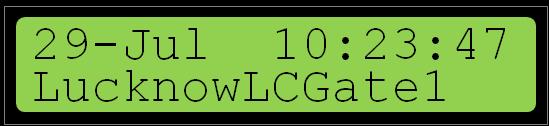
- Idle state displays Date, Time, and Station ID.
- Displays call progress messages and returns to Station ID display when idle.
- Main menu offers options to Play Voice File, Set Station ID, Set Time, Set Date, and Copy all to USB.
- Playback functionality for latest or stored voice records with speaker option.
- Allows setting/editing of Station ID (max 16 alphanumeric characters).
- Enables setting/editing of unit time in 24-Hour format.
- Facilitates setting/editing of unit date.
- Supports copying internal voice records to a USB memory device (FAT file system).
Description
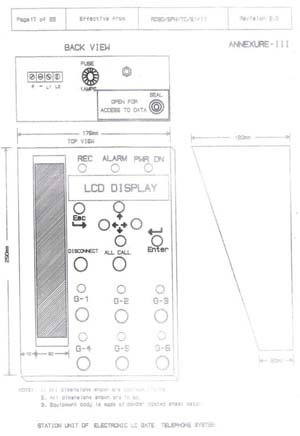
The new Electronic LC Gate Telephone System – Station Telephone Unit consists of a User Interface with one LCD and Keypad. The details of these parts are shown below.
Specifications
- SPECIFICATION NO: RDSO/SPN/TC-51/2011 REV.2.0
- STATUS: PART-I
LCD & Keypad Description
- 2-Line, 16-Character LCD: alphanumeric character display with two lines of 16 characters each.
- Keypad: consists of 6 keys (UP, DOWN, LEFT, RIGHT, ENTER, ESCAPE) and two LEDs. LEFT/RIGHT keys select cursor position. UP/DOWN keys scroll menu items and edit characters. ENTER key selects operation. ESCAPE key exits menu. One LED acknowledges key press, other indicates clock running state.
Idle State
The LCD when ‘idle’ displays Date and Time on the Line1 and Station Id on Line 2. Station Id is a 16-character string consisting of 16 alphanumeric characters without any spaces in between. The same string is used in audio record file naming. When display is ‘idle’ state, it displays the call progress messages on Line2 and returns to ‘Station Id’ display when there are no calls in progress. The other strings that are displayed for other call states are: "Calling ALL... " "ALL Disconnected" "Answered Gate x ", and "Gx Call Ended ".
Main Menu
- 'Play Voice File
- 'Set Station ID
- 'Set Time
- 'Set Date
- 'Copy all to USB
Playback of Voice Record
When display is idle, press “ENTER” key to enter into main menu display on Line2. Use “UP” or “DOWN” key to scroll through the main menu items on Line2. The menu items given above will be displayed one after the other on Line2 for user selection. Use “ENTER” to select the current main item displayed on Line2. Press “ESC” key to come out of main menu and to set display idle. When Line2 of the display is showing “’Play Voice File” press ENTER key to enter into playback menu. User will be given the following two options based on the state of the operation. Make sure that speaker is switched ON for playback. When at least one call is recorded from the time the unit is powered ON (or reset), the option to play latest record also will be given to the user. Else, it allows only selecting stored records. When display is showing “Play latest rec?”, pressing the ENTER key triggers the playback of the latest recorded voice file. Pressing ESC key will terminate the playback of voice record. When “Play stored rec?” option is selected, it starts from displaying the first record/file name from the stored voice records. The filename is displayed without station Id. When ENTER key is pressed, the displayed file is selected for playback. If there are no voice records available, the same will be informed to the operator as “No files found!”. The voice records/files are stored in the WAV file format with the following filename format: <Station Id>_YYYYMMDD_HHMMSS_<In/Out>_G<a/1/2/3/4/5/6> Ex.: LucknowLCGate1_20120729_102348_Out_G2. Once the playback of selected file is done, it will display the “Done!”. Then operator is allowed to select next file from the list of files available in the unit. Pressing ESC key will terminate the playing back of voice record. If there is any Incoming/Outgoing call initiate during playback, the playback will be terminated immediately. If there are no more files to display, the display shows “End of records!!”.
Setting Station ID
Press ENTER key to set/edit the station identification. It shows the current station id of the unit and allows user to edit each position/character. The cursor is shown as blinking character (or as a block for space). The cursor position can be selected using LEFT or RIGHT keys. The character at cursor position can be changed by pressing UP or DOWN keys. Only alphanumeric characters and “space” are allowed in the following sequence: 0, 1, 2,.. 9, A, B, C, …. X, Y, Z, a, b, c, …. x, y, z and “space”. Once entry/editing is done for the required station id, it can be set by pressing ENTER key. The new id will be used for voice filenames and also for display in idle state. No spaces are allowed in the Station Id. Only characters before the first space are taken as station id. The station id can be maximum 16 alphanumeric characters.
Setting Time
Press ENTER key to set/edit the unit time. It displays the current time of the internal real time clock (RTC) of the unit. Then, the user is allowed to edit the time. Time is always in 24-Hour format. Use LEFT and RIGHT keys to select the digit to edit. The cursor is shown as blinking character. Use UP and DOWN keys to select a number from 0 to 9. Once the required time is entered, press ENTER to set the internal RTC time with this value. The same will be displayed on the display during Idle State of the display.
Setting Date
Press ENTER key to set/edit the unit date. It displays the current date of the internal real time clock (RTC) of the unit. Then, the user is allowed to edit the date.
Copying Voice Records to USB Pen Drive
Press ENTER key to initiate copy of internal voice records to a USB memory device. First it tries to detect the USB device, if plugged in the USB-A receptacle connector provided at the rear side of the station telephone unit. During this process the display shows the status. There may be no device available or not a memory device with FAT file system. If a valid device is detected, it starts copying internal WAV files one by one to the device. The display shows these states. During successful copying of files, it shows the file numbers that are being copied to USB device. Once copying of all files is done it gives confirmation and asks to remove the USB device from the connector. If copying is interrupted by an incoming/outgoing call, the same will be informed to the user. Make sure that USB Pen drive is formatted with FAT file system and sufficient free memory is available for the copy of voice records.
Key attributes
Certificates
ISO 9001:2008
ISO 9001:2015
Reviews
Questions & answers
Ask the supplier — answers are visible to all buyers
No questions yet. Be the first to ask!
Know your supplier
EPSILON ELECTRONIC EQUIPMENT AND COMPONENTS PRIVATE LIMITED
Unverified<1 yr on BharatSealKushaiguda Hyderabad, Telangana
Orders completed
—
On-time delivery
—
Reorder rate
—
Year founded
1976
Staff size
—
Certifications
2

%22%2F%3E%3Ctext%20x%3D%2250%25%22%20y%3D%2250%25%22%20dominant-baseline%3D%22central%22%20text-anchor%3D%22middle%22%20font-family%3D%22'DM%20Sans'%2Csystem-ui%2Csans-serif%22%20font-weight%3D%22800%22%20font-size%3D%22126%22%20fill%3D%22%231a1a1a%22%20fill-opacity%3D%220.14%22%20letter-spacing%3D%22-2%22%3ECC%3C%2Ftext%3E%3C%2Fsvg%3E)


%22%2F%3E%3Ctext%20x%3D%2250%25%22%20y%3D%2250%25%22%20dominant-baseline%3D%22central%22%20text-anchor%3D%22middle%22%20font-family%3D%22'DM%20Sans'%2Csystem-ui%2Csans-serif%22%20font-weight%3D%22800%22%20font-size%3D%22126%22%20fill%3D%22%231a1a1a%22%20fill-opacity%3D%220.14%22%20letter-spacing%3D%22-2%22%3ETE%3C%2Ftext%3E%3C%2Fsvg%3E)
%22%2F%3E%3Ctext%20x%3D%2250%25%22%20y%3D%2250%25%22%20dominant-baseline%3D%22central%22%20text-anchor%3D%22middle%22%20font-family%3D%22'DM%20Sans'%2Csystem-ui%2Csans-serif%22%20font-weight%3D%22800%22%20font-size%3D%22126%22%20fill%3D%22%231a1a1a%22%20fill-opacity%3D%220.14%22%20letter-spacing%3D%22-2%22%3ETE%3C%2Ftext%3E%3C%2Fsvg%3E)
%22%2F%3E%3Ctext%20x%3D%2250%25%22%20y%3D%2250%25%22%20dominant-baseline%3D%22central%22%20text-anchor%3D%22middle%22%20font-family%3D%22'DM%20Sans'%2Csystem-ui%2Csans-serif%22%20font-weight%3D%22800%22%20font-size%3D%22126%22%20fill%3D%22%231a1a1a%22%20fill-opacity%3D%220.14%22%20letter-spacing%3D%22-2%22%3ETE%3C%2Ftext%3E%3C%2Fsvg%3E)
%22%2F%3E%3Ctext%20x%3D%2250%25%22%20y%3D%2250%25%22%20dominant-baseline%3D%22central%22%20text-anchor%3D%22middle%22%20font-family%3D%22'DM%20Sans'%2Csystem-ui%2Csans-serif%22%20font-weight%3D%22800%22%20font-size%3D%22126%22%20fill%3D%22%231a1a1a%22%20fill-opacity%3D%220.14%22%20letter-spacing%3D%22-2%22%3ETE%3C%2Ftext%3E%3C%2Fsvg%3E)
%22%2F%3E%3Ctext%20x%3D%2250%25%22%20y%3D%2250%25%22%20dominant-baseline%3D%22central%22%20text-anchor%3D%22middle%22%20font-family%3D%22'DM%20Sans'%2Csystem-ui%2Csans-serif%22%20font-weight%3D%22800%22%20font-size%3D%22126%22%20fill%3D%22%231a1a1a%22%20fill-opacity%3D%220.14%22%20letter-spacing%3D%22-2%22%3ETE%3C%2Ftext%3E%3C%2Fsvg%3E)
%22%2F%3E%3Ctext%20x%3D%2250%25%22%20y%3D%2250%25%22%20dominant-baseline%3D%22central%22%20text-anchor%3D%22middle%22%20font-family%3D%22'DM%20Sans'%2Csystem-ui%2Csans-serif%22%20font-weight%3D%22800%22%20font-size%3D%22126%22%20fill%3D%22%231a1a1a%22%20fill-opacity%3D%220.14%22%20letter-spacing%3D%22-2%22%3ETE%3C%2Ftext%3E%3C%2Fsvg%3E)